For readers
Somebody shared a journal with you: how to sign in, how to be told about new days, and how to correct your details.
Somebody has shared their travel journal with you. This page explains how to read it, how to be told when there is something new, and how to correct your own details.
You do not need an account, and there is no password anywhere in this.
Getting in
Everything here works with your email address and a six-digit code. Nothing else.
-
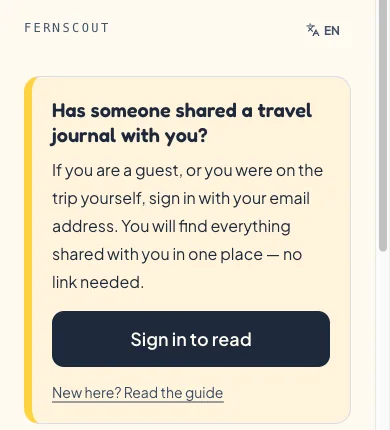
Open the site and press Sign in to read. It is the first thing on the page, above everything else.
-
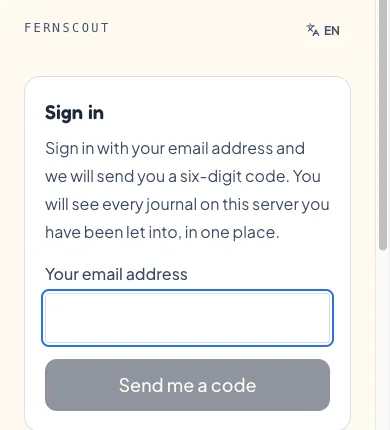
Type the email address the invitation was sent to, and press Send me a code.
-
A code arrives by email. Type it in — or press the button in that email, which does the same thing without typing.
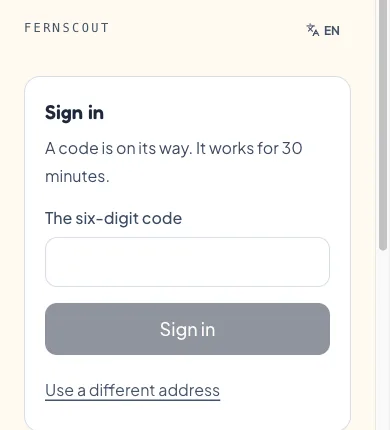
You stay signed in on that device for a year. If you read on a phone and a laptop, you sign in once on each.
Signing in does not give you access to anything by itself. It only proves which address is yours. What you can then read is whatever the person whose journal it is has already shared with you — so if you have just been invited and cannot see anything yet, they may not have approved you.
If the email does not arrive
Look in your spam folder first. A code lasts thirty minutes; after that, ask for a new one — the old one stops working the moment a new one is sent, so always use the newest email.
What you see after signing in
The front page becomes your own list: every journal on this server you have been let into, in one place. Each one says how you got in — whether it is yours, whether you were on the trip, or whether it was shared with you.
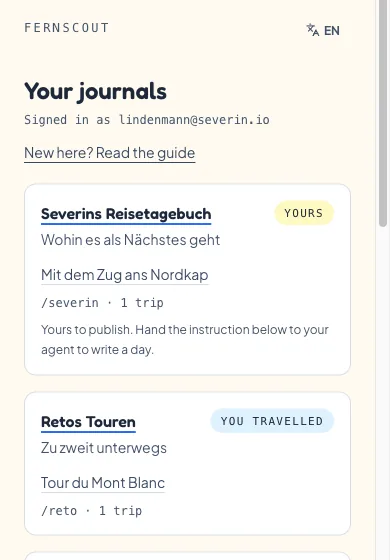
You can get back to that list at any time from the link above the journal's name at the top of the page.
Being told when there is a new day
You can have your phone or computer tell you when a new day is published. This is off until you turn it on, and it is per journal — turning it on for one journal says nothing about any other.
On an iPhone or iPad
Apple only allows this for a site you have added to your Home Screen, so there is one extra step. It is worth doing once:
-
Open the journal in Safari — not Chrome, and not a link inside another app.
-
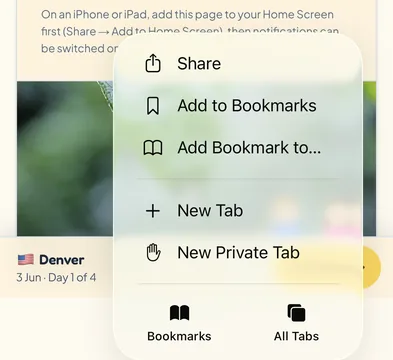
Press the Share button — the square with an arrow pointing up. If you press and hold the page instead, it is the first entry in the menu.
-
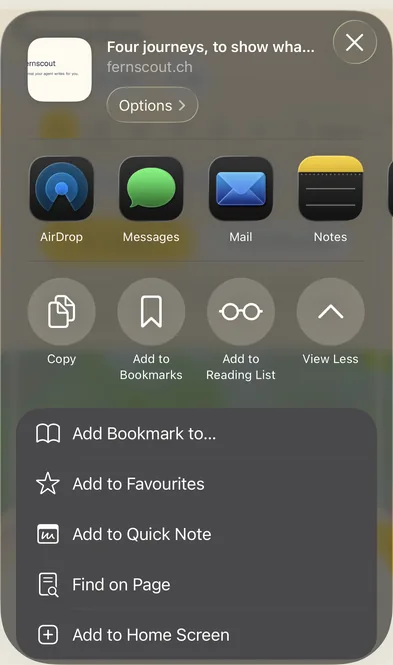
The sharing panel opens. Scroll down inside it — past the apps — and choose Add to Home Screen, then Add. It is near the bottom, which is why it is easy to miss.
-
Close Safari and open the journal again from the new icon on your Home Screen.
-
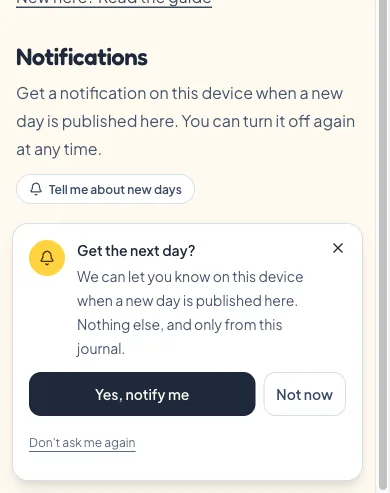
Read a little. A card appears at the bottom offering to tell you about new days — press Yes, notify me, then Allow when your phone asks.
If you would rather not wait for the card, the same switch is on your own page under Notifications — see below for how to find it.
On Android, or on a computer
No extra step. Open the journal, read a little, and the same card appears at the bottom. Or go to your own page and use the switch under Notifications.
Turning it off again
The same switch turns it off. If you would rather not be asked about it at all, the card has Don't ask me again, and it is remembered.
Your details, and your address
If the journal's owner sends postcards, they need a postal address — and you may want to correct it, change the language you are written to in, or stop the emails altogether.
Every email you get from a journal has a link in the footer to your details. That link is all you need: it opens a page with your own record on it, and no sign-in.
On that page you can:
- correct your name, your address or your phone number,
- choose which language you are written to in,
- turn the emails off,
- or delete your record entirely.
If you have lost every email, sign in and open your own page — there is a link to the same place from there.
Your own page
Once signed in, open the journal and press the person icon in the row of icons at the top. That page tells you what you can see in this journal, lets you switch notifications on or off, and links to your details.
It is also where you sign out — which ends the sign-in on that device everywhere on this server, straight away.
If something does not work
- You cannot see a trip you were told about. The person whose journal it is has to approve you before a shared trip opens, and some trips are only ever visible to the people who were actually on them. Ask them.
- You are asked to sign in again on a device where you already did. Signing out on one device ends it on that device only; but if you pressed Sign out or removed the device from your list, you sign in again.
- The notification card never appears. Either notifications are switched off for that journal, or you have already answered — check the switch on your own page.